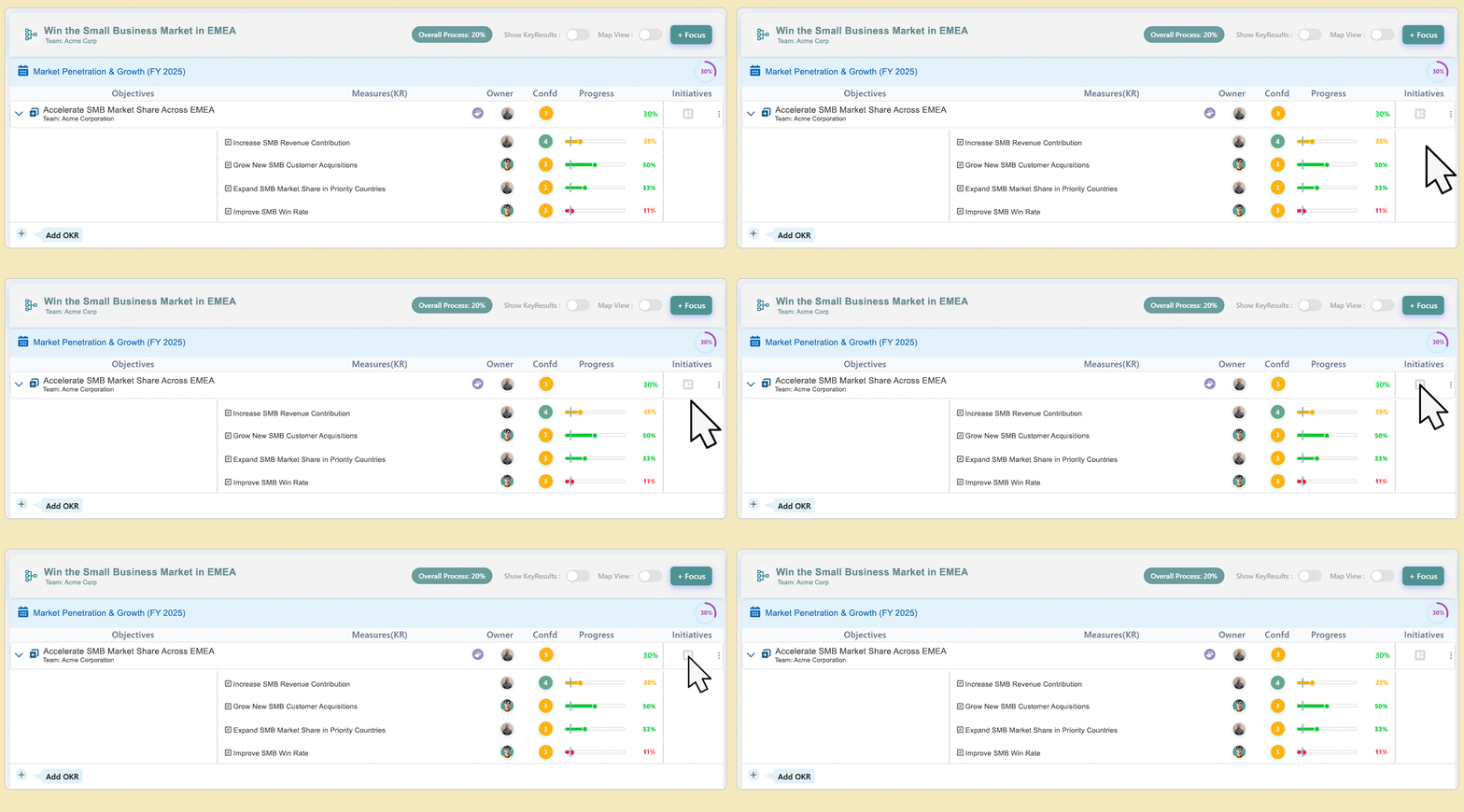
Click the Initiatives (Board) icon  located on the far right side of the Objective or Key Result row. A menu will appear with options to create a new board.
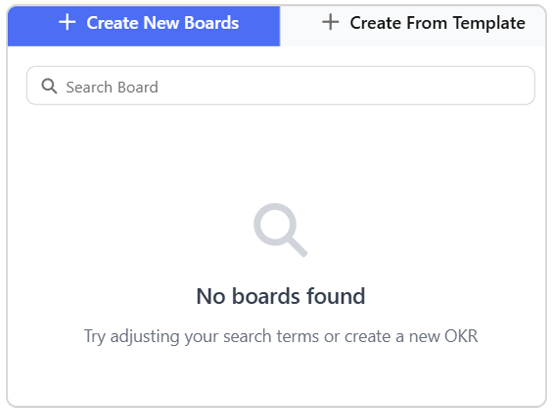
Choose one of the following creation methods:
- Create New Board: Start a new Initiative Board from scratch.
- Create From Template: Use a predefined list of tasks or actions.
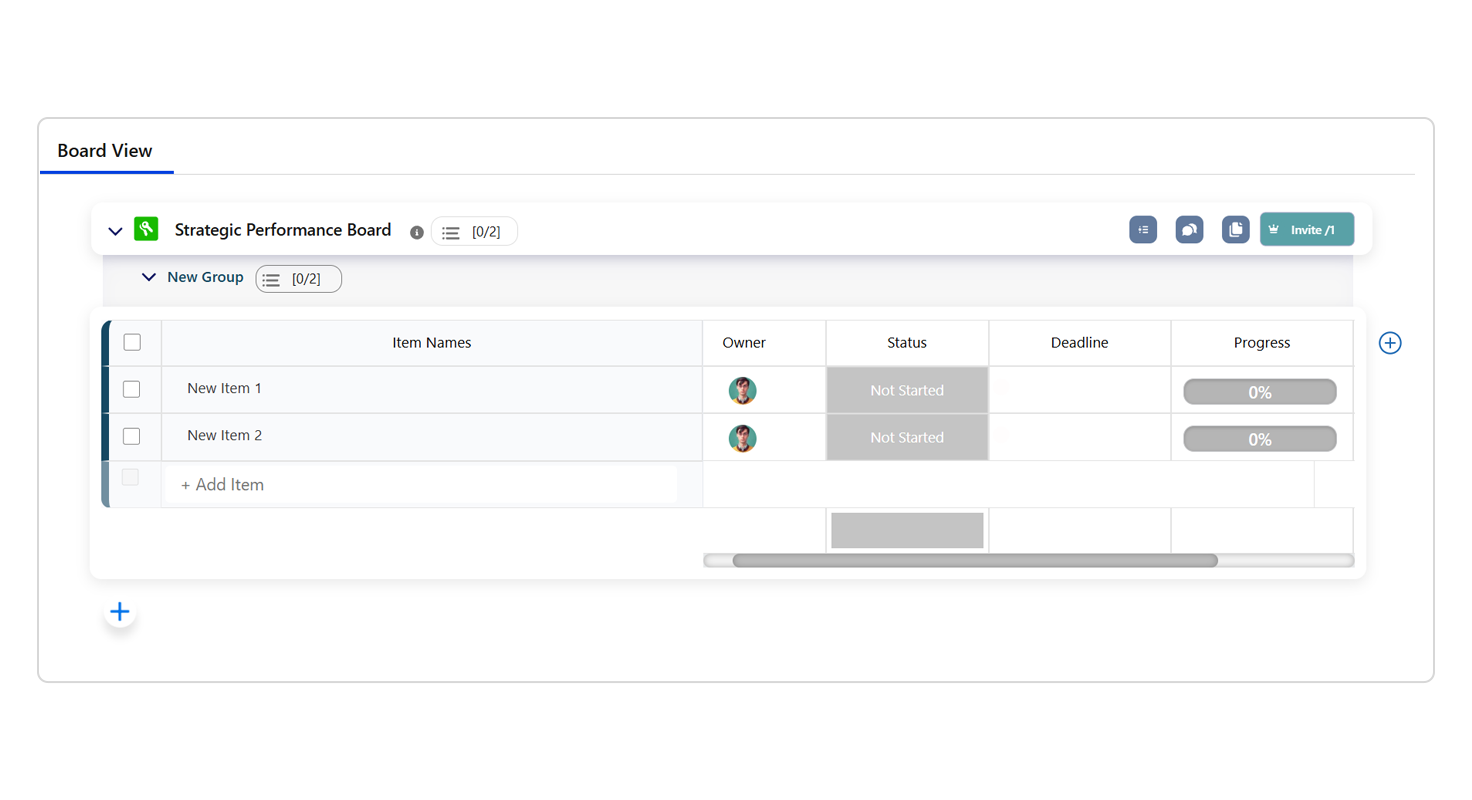
- Item Names: Rename the default items (for example, “New Item 1”) to describe your specific tasks or projects.
- Owner: Click the Owner field and assign a team member responsible for completing each item to ensure accountability.
- Status: Update the status of each item as work progresses. The default status is Not Started.
- Deadline: Optionally, set a due date for each task to manage timelines effectively.
- Progress: Update the completion percentage to reflect ongoing progress. This helps track contribution to the Initiative.
- Add Item (+): Click this option to add more tasks or action items as needed.