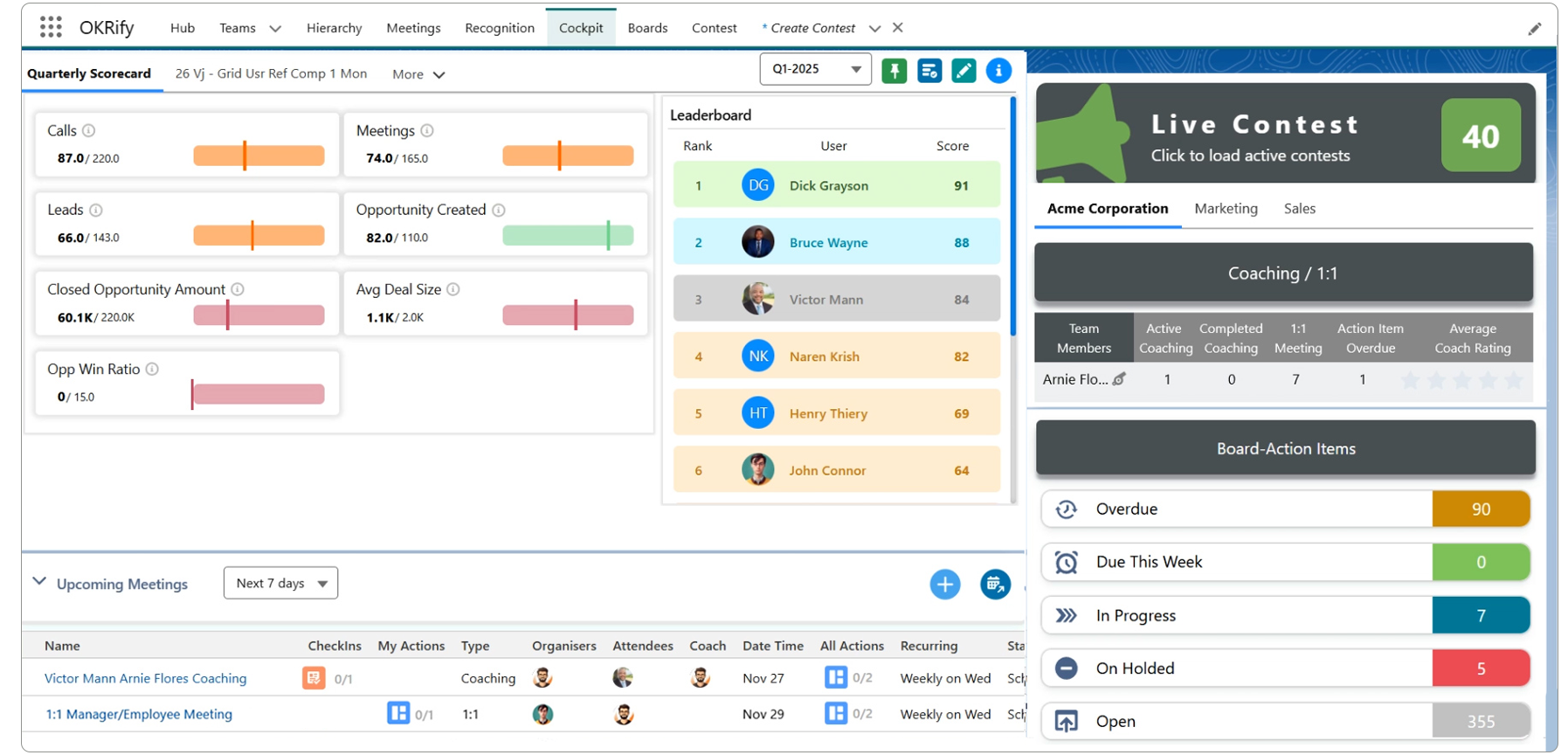
The Cockpit in OKRify is a centralized place designed to boost performance by giving managers and employees seamless access to critical information—all in one location, without navigating across multiple pages.
Scorecard Section
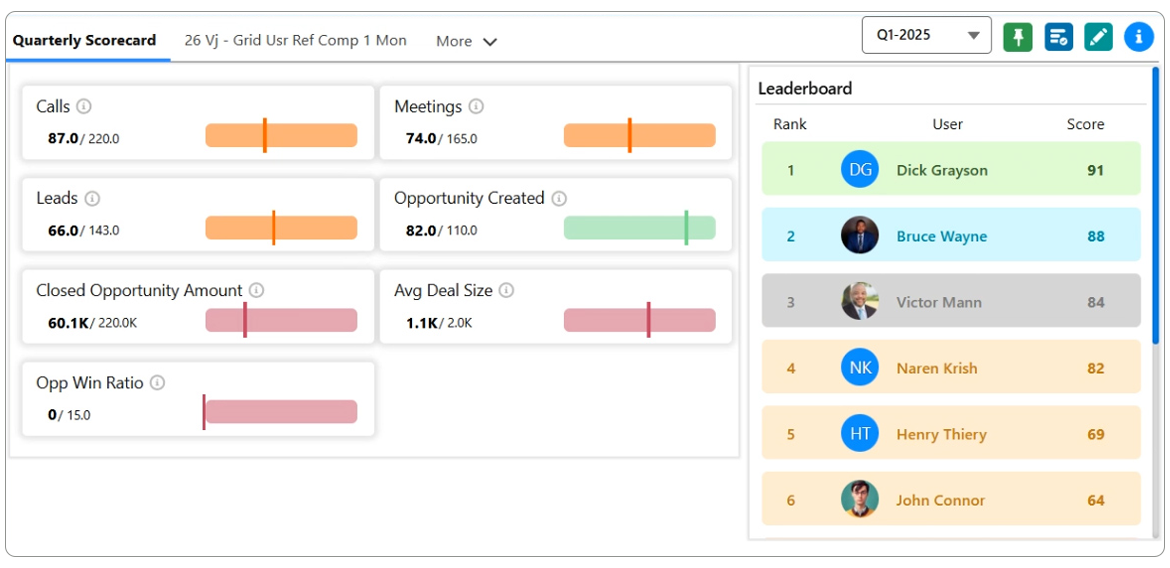
The Scorecard section is the first area in the Cockpit. It provides an organized view of your scorecards.
Key Features:
Scorecard List: At the top, a list of scorecard names is available. Clicking a scorecard name will display its details.
Pinned Scorecard: The pinned scorecard is shown by default when you access the Cockpit.
'More' Option: For users with multiple scorecards, the menu includes a 'More' option to view all available scorecards.
Icons in the Scorecard Section:
Period Selection Dropdown: Select past periods (months or quarters) to review performance. The current period is displayed by default.
Pin Icon: Pin a scorecard to load it by default.
Leaderboard Icon: Available to managers. For users, it is visible only if enabled by the manager during scorecard creation.
Edit Icon: Allows managers to edit scorecards. Not available to users.
Background Icon: For managers using KPI-based scorecards. Click this to refresh data immediately (updates within 5 minutes).
User History Icon: Employees can view their past performance using this. Managers can access user histories via the Leaderboard.
Info Icon: Displays scorecard details, including manager information, start and end dates, and more.
Meeting Section
Located below the Scorecard section, the Meeting section provides an overview of upcoming meetings.
Key Features:
Default view displays meetings scheduled for the next 7 days.
Filters allow adjustments to show meetings for 14, 30, or 60 days, or a custom date range.
Icons in the Meeting Section:
Create Icon:Schedule a new meeting.
Go to Main Meeting Hub Icon: Access the Meeting HUB to manage and view all meeting details.
Right Panel Overview
The right panel contains three important sections: Contests, Coaching, and Board Action Items.
Contest Section
Overview:
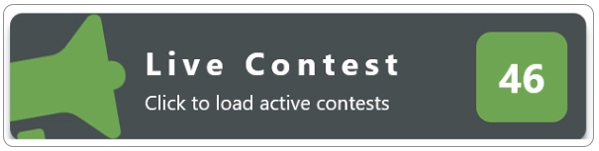
Displays the number of live contests available.
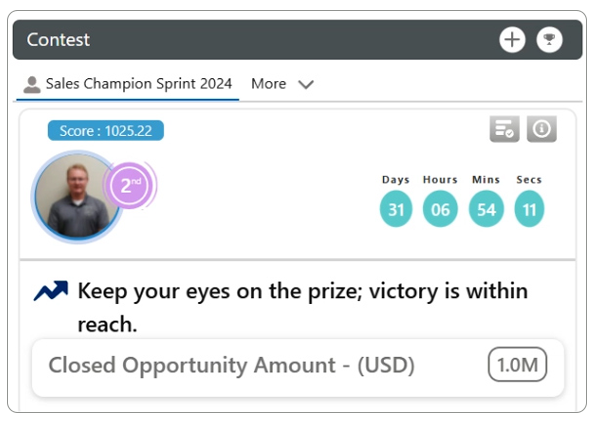
Clicking the section reveals details of ongoing contests.
Managers see contest details for their team members, while users see their performance in contests.
Icons in the Contest Section:
Create Icon: Create a new contest.
Go to Contest Hub Icon: Access the Contest Hub page for completed contests and details.
Coaching Section
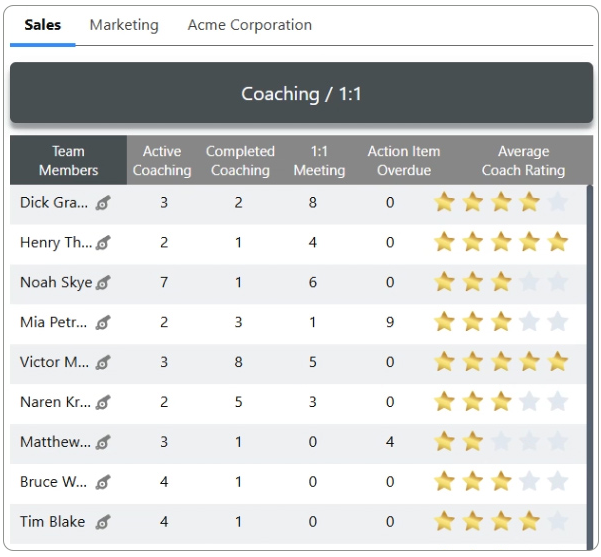
For Managers:
View details for each team member, including:
Active Coaching
Completed Coaching
1:1 Meetings
Overdue Action Items
Average Coach Rating
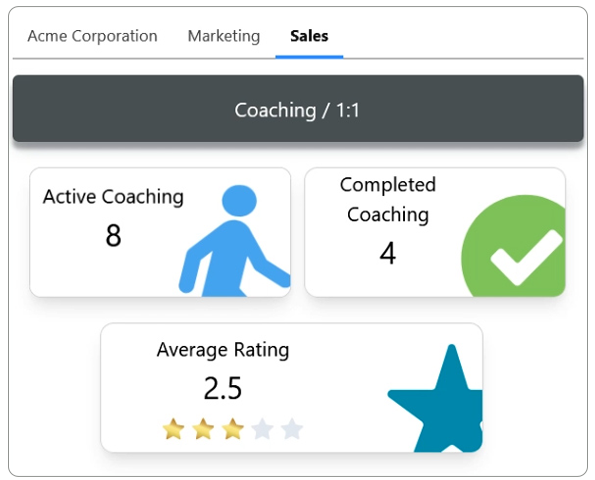
For Users:
View details on:
Active coaching sessions
Completed coaching sessions
Average coaching rating
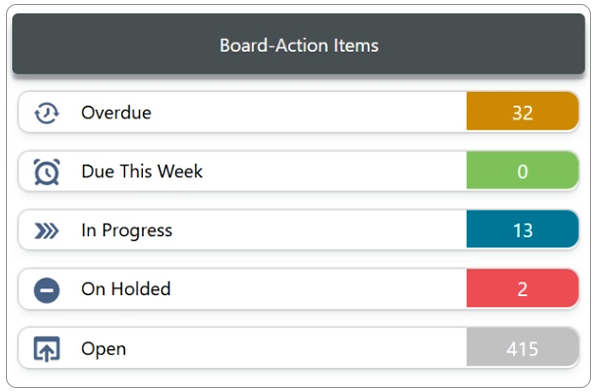
Board Action Items Section
Tracks assigned tasks and their statuses:
Overdue
Due This Week
In Progress
On Hold
Open
Clicking a task status opens a popup with detailed information about the tasks in that category.
With the Cockpit in OKRify, managers and employees have access to all the critical information they need in one place, streamlining workflows and enhancing performance tracking. For more details on specific features, explore our tutorials or visit the relevant training sections.
 Schedule a new meeting.
 Access the Meeting HUB to manage and view all meeting details.