Creating an Objective & Key Results (OKR)
Use the Create OKR workflow to set up an Objective that links to a Focus Area and establish measurable Key Results that drive execution and accountability.
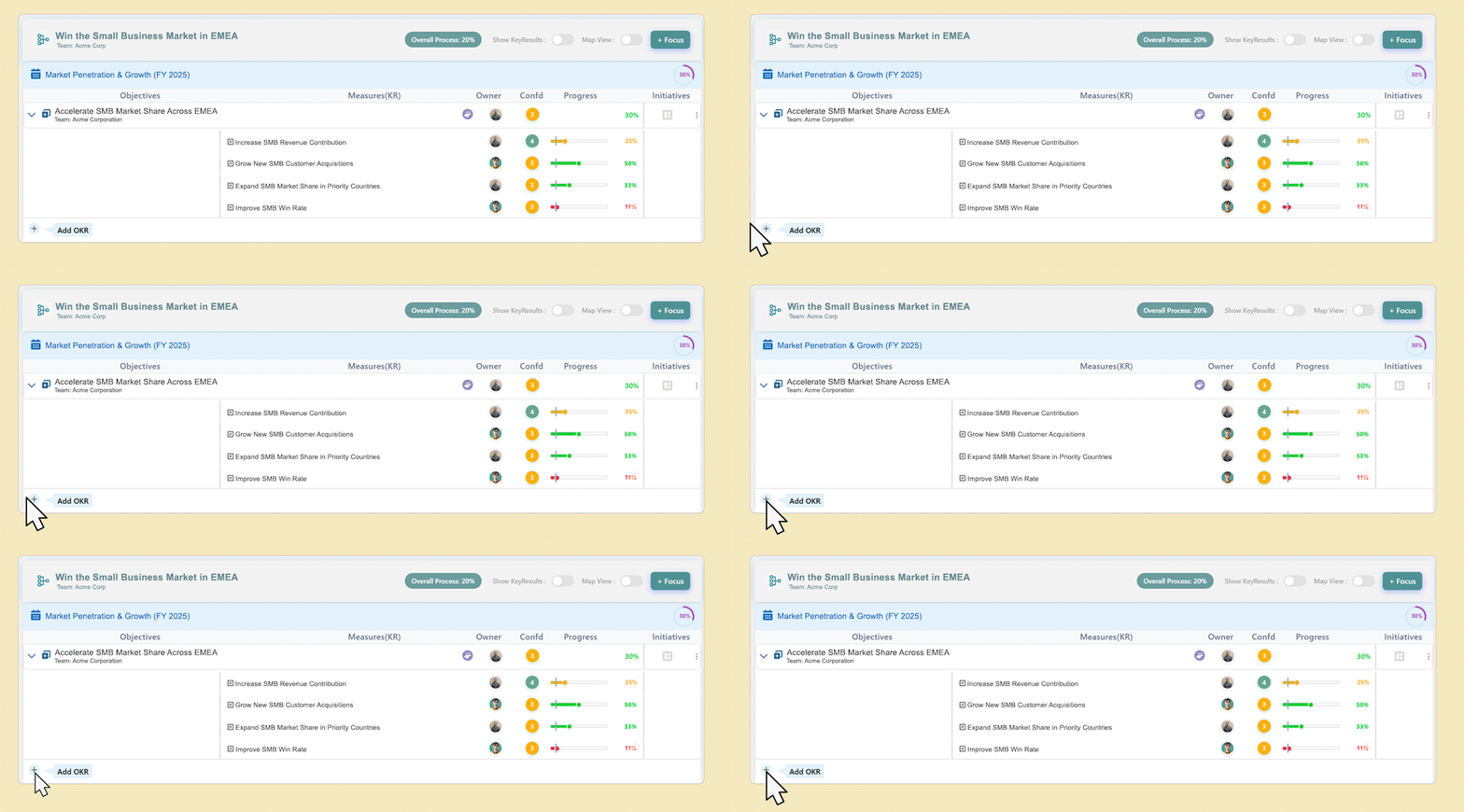
Step 1: Create the Objective
When you click Create OKR from within a Focus Area view, the system automatically aligns your new Objective under that Focus Area—ensuring it supports the overall strategic plan.
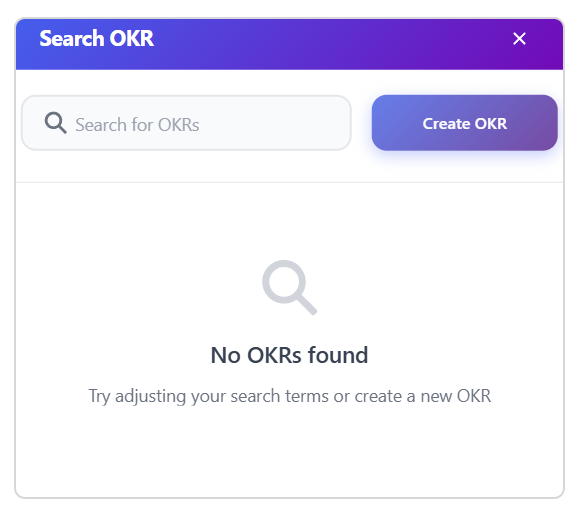
- Parent Objective (automatically set)
The Focus Area you launched from becomes the parent, which ensures direct alignment and hierarchy. - Ownership
Choose the level: Company, Team, or Individual.
Tip: Use “Team” if a department is responsible. - Objective Name
Write a clear, concise, action-oriented title that captures the outcome. - Period
Select the timeframe (e.g., Q1, FY2025).
The system defaults to the Current Period or Current FY but you can change it to any valid period. - Team
For Team-level OKRs, select the responsible team. - Objective Description (optional)
Provide additional context—why this objective matters, how you’ll pursue it. - Tags (optional)
Use keywords for grouping and filtering OKRs.
Example: Retention, EMEA, CustomerSuccess
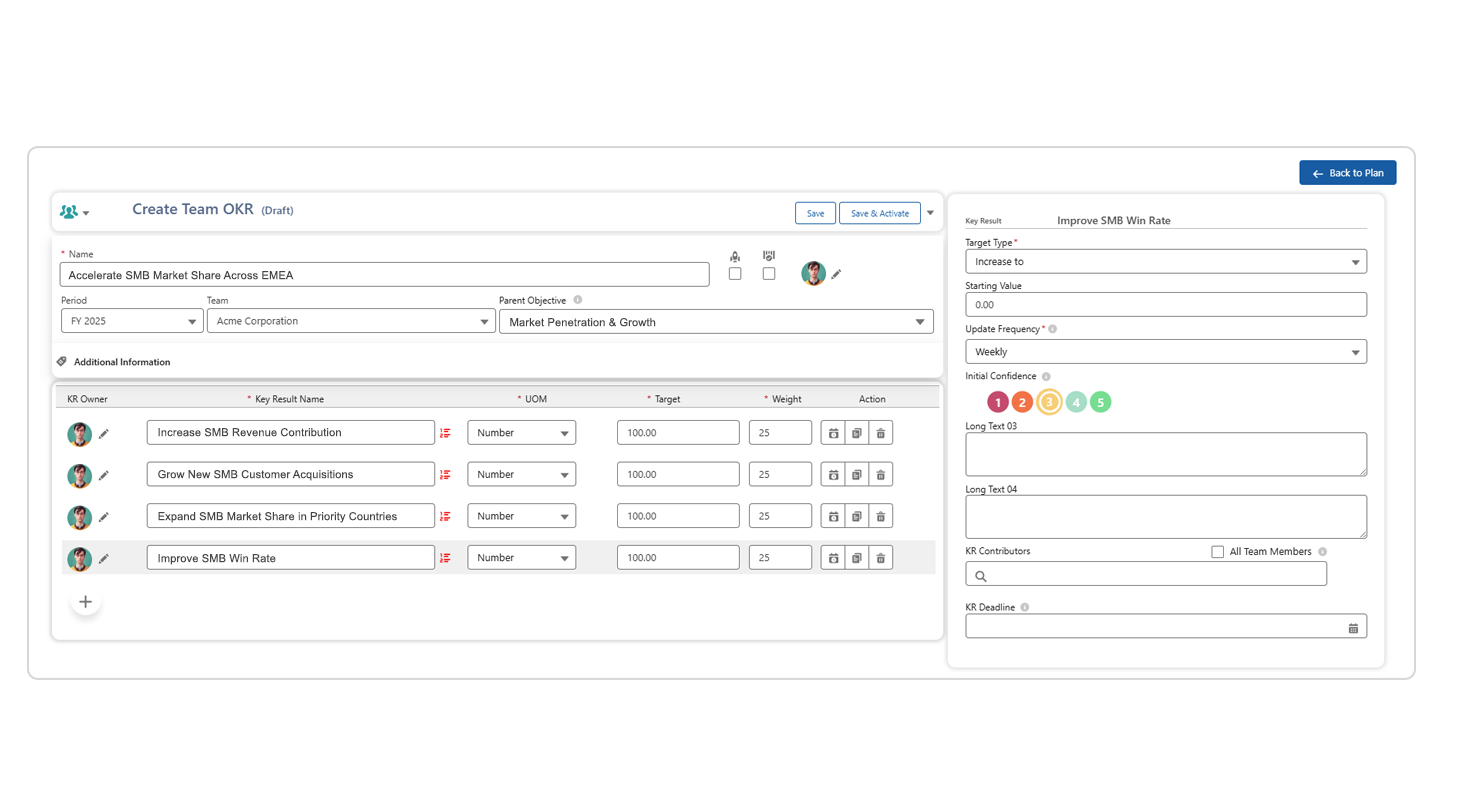
Step 2: Add Key Results
Every Objective needs measurable Key Results (KRs) to track progress and outcomes.
- Key Result Name
Craft a short, measurable statement with a clear target. - Unit
Choose how progress will be measured: Number, Percent, Milestone, SObject, Report, KPI or Linked OKR. - Target
Define the goal value for the KR.
Example: 95% - Weight
Assign a weight (0 – 100) to each KR. The total weight across all KRs under the Objective must equal 100.
Example:- KR1: Retention → 50
- KR2: NPS Increase → 30
- KR3: Onboarding Time Reduction → 20
- Optional fields:
- Target Type: Increase (default) or Decrease.
Example: Decrease churn from 15% → 5% - Starting Value: Required if you’re tracking a Decrease.
Example: Current churn is 15% - Update Frequency: How often progress gets updated (e.g., Weekly).
- Initial Confidence: A qualitative starting estimate of success.
Example: 70% - KR Deadline: Specific date if different from the Objective period end.
- Target Type: Increase (default) or Decrease.
Step 3: Save and Activate
- Save → Saves the OKR in Draft status.
- Save & Activate → Begins live tracking of the Objective and its Key Results
To know more about OKR visit this : Create OKR and Courses
